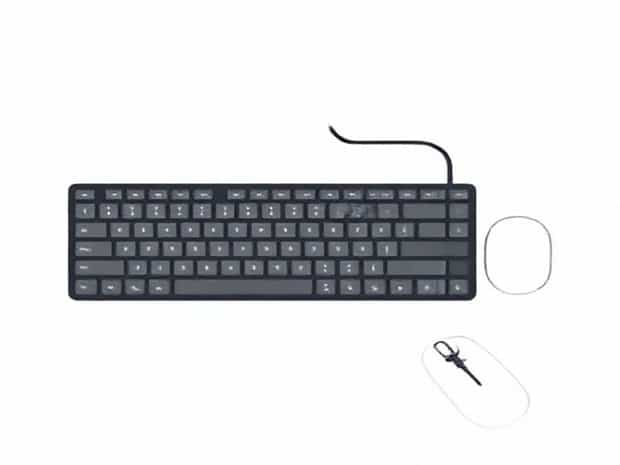
Keyboard And Mouse Ergonomics
Proper keyboard and mouse ergonomics are essential for maintaining comfort and preventing injuries for anyone who spends long hours working at a computer. Many people underestimate the impact that poor posture and improper device placement can have on overall health. Repetitive strain injuries, carpal tunnel syndrome, and chronic wrist or shoulder pain are common issues that arise from neglecting ergonomic principles. By understanding how to position the keyboard and mouse correctly, along with adopting supportive habits and accessories, individuals can reduce discomfort, improve productivity, and maintain long-term musculoskeletal health. Ergonomics is not just about comfort; it is about sustaining the ability to work efficiently without compromising health.
Understanding Keyboard Ergonomics
Keyboard ergonomics focuses on the correct placement, angle, and typing posture to minimize strain on the hands, wrists, and forearms. The layout of the keyboard, height of the desk, and seating position all play a crucial role in maintaining a neutral posture. A neutral wrist position where the wrist is straight and not bent up, down, or sideways reduces the risk of tendon and nerve injuries. Ergonomic keyboards, which are designed to follow the natural curvature of the hands, can further reduce strain by allowing for more comfortable hand positioning.
Proper Keyboard Placement
- Position the keyboard at a height that allows your elbows to bend at approximately 90 degrees.
- Keep the keyboard directly in front of you to avoid twisting your torso or wrists.
- Maintain a slight negative tilt, where the keyboard slopes away from you, to keep wrists in a neutral position.
- Ensure that your shoulders are relaxed and not hunched while typing.
Typing Technique
Using proper typing technique is equally important as correct placement. Avoid resting your wrists on the desk or keyboard edge while typing, as this can increase pressure on the carpal tunnel. Instead, hover your hands slightly above the keyboard, allowing fingers to move freely. Use a light touch when pressing keys to reduce strain on tendons. Incorporating frequent breaks and stretching your fingers and wrists can also help prevent fatigue and discomfort over long periods of typing.
Mouse Ergonomics
The mouse is another critical component in workstation ergonomics, as prolonged use without proper positioning can lead to repetitive strain injuries. The size, shape, and placement of the mouse should allow the hand and wrist to maintain a neutral alignment. Ergonomic mice are designed to support the natural contour of the hand, reducing pronation of the forearm and minimizing muscle tension. Choosing the right mouse for your hand size and grip style whether palm, claw, or fingertip can significantly impact comfort and prevent long-term injury.
Mouse Placement and Usage
- Keep the mouse close to the keyboard to prevent excessive reaching, which strains the shoulder and upper arm.
- Position the mouse at the same height as the keyboard to maintain a straight forearm alignment.
- Use the whole arm to move the mouse instead of just the wrist to distribute movement and reduce localized stress.
- Consider using a mouse pad with a wrist rest to support the wrist without forcing an unnatural angle.
Advanced Ergonomic Considerations
For users who spend extensive hours at a computer, additional ergonomic considerations can further reduce strain. Split keyboards, vertical mice, and trackballs offer alternative solutions that accommodate different hand and wrist positions. Adjustable chairs and desks allow for optimal height alignment, while monitor placement at eye level helps maintain proper posture and reduces neck strain. Using keyboard shortcuts and voice commands can also reduce mouse dependency and minimize repetitive motions.
Workstation Setup Tips
Creating an ergonomic workstation is about more than just keyboard and mouse placement. A comprehensive approach considers chair height, monitor position, and desk layout to support a neutral and comfortable posture. Your monitor should be at eye level and about an arm’s length away, while your chair should support your lower back and allow your feet to rest flat on the floor or footrest. Maintaining this alignment ensures that your hands, wrists, shoulders, and neck remain in a neutral position during long periods of work.
Keyboard and Mouse Accessories
- Ergonomic wrist rests for the keyboard and mouse can reduce pressure on tendons and provide additional support.
- Adjustable keyboard trays can help maintain proper height and angle alignment.
- Vertical or contoured mice can help prevent forearm pronation and reduce strain.
- Split keyboards or curved layouts allow for a more natural hand and arm position.
Preventing Strain Through Habits
Even with an ergonomic setup, adopting healthy habits is crucial for preventing strain and discomfort. Frequent breaks, micro-stretches, and hand exercises can relieve tension and improve circulation. Alternating tasks and avoiding prolonged static postures also contribute to better musculoskeletal health. Paying attention to your body’s signals, such as tingling, numbness, or fatigue, allows for timely adjustments before injuries develop. Over time, consistent application of ergonomic principles can reduce pain, enhance comfort, and improve overall productivity.
Recommended Breaks and Exercises
- Take a 1-2 minute break every 30 minutes to stretch hands, wrists, and shoulders.
- Practice finger and wrist stretches, such as wrist rotations and finger flexions, to maintain mobility.
- Shake out your hands and gently massage the forearms to relieve tension.
- Stand, walk, or change posture regularly to prevent prolonged strain on any one muscle group.
Ergonomics for Remote Workers
With the rise of remote work, maintaining proper keyboard and mouse ergonomics at home is more important than ever. Many home setups lack ergonomic furniture, which can lead to poor posture and increased strain. Investing in adjustable chairs, desks, and ergonomic accessories can create a comfortable and healthy work environment. Even small changes, such as elevating the keyboard, using an external mouse, or adjusting chair height, can make a significant difference in reducing discomfort and preventing injuries over time.
Common Mistakes to Avoid
- Placing the keyboard or mouse too high or too low, causing awkward wrist angles.
- Resting wrists on sharp edges or hard surfaces while typing.
- Reaching too far for the mouse, leading to shoulder strain.
- Ignoring breaks and stretching, increasing risk of repetitive strain injuries.
- Using poorly designed devices that do not match hand size or grip style.
Keyboard and mouse ergonomics are essential for anyone who spends significant time at a computer. Proper device placement, supportive accessories, and healthy habits can greatly reduce the risk of strain, injury, and long-term discomfort. Understanding the principles of ergonomics allows users to maintain a neutral posture, improve typing efficiency, and enhance overall comfort. Incorporating ergonomic keyboards, mice, wrist rests, and adjustable workstation furniture, combined with regular breaks and exercises, ensures a safer and more productive working experience. By prioritizing ergonomics, individuals can protect their hands, wrists, shoulders, and back while maintaining optimal performance and long-term health.
Ultimately, investing time and attention into keyboard and mouse ergonomics is a simple yet powerful way to enhance comfort, prevent injuries, and sustain productivity in both office and home environments. A well-planned ergonomic setup, paired with mindful work habits, provides lasting benefits that support both physical health and overall well-being.