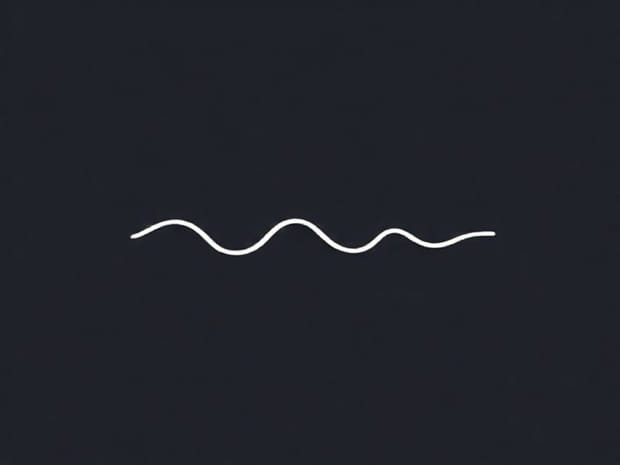
How To Type Squiggly Line
Typing special characters can sometimes feel tricky, especially when you need a symbol like the squiggly line, also known as the tilde (~). Whether you are writing code, formatting a document, or simply trying to use the squiggly line for stylistic reasons, knowing how to type it correctly on different devices can save you time and frustration. The process differs depending on whether you are using Windows, Mac, Linux, or even a mobile keyboard, but once you understand the basic steps, typing the squiggly line becomes second nature. This guide will walk through each method in detail so you can easily type the tilde whenever you need it.
Understanding the Squiggly Line
The squiggly line, or tilde (~), is a versatile symbol that appears in many contexts. In mathematics, it can represent approximation. In programming, it often plays a role in file paths, commands, or operators. In languages like Spanish and Portuguese, the tilde is used in letters such as ñ. Because it serves so many purposes, learning how to type squiggly line characters is a useful skill for both professional and everyday tasks.
Typing the Squiggly Line on Windows
Windows users have several options for typing the tilde symbol. The most common way involves the keyboard directly, but there are also alternatives when a keyboard lacks a dedicated key.
Standard Keyboard Method
- Locate the tilde key, which is usually found at the top-left corner of the keyboard, just below the
Esckey and above theTabkey. - Press the key directly to type
~. On most keyboards, you may need to hold down theShiftkey because the tilde shares a key with the backtick (`).
Using ASCII or Alt Codes
If your keyboard layout does not include a dedicated tilde key, you can use Alt codes
- Hold down the
Altkey. - Type
126on the numeric keypad. - Release
Alt, and the squiggly line will appear.
Typing the Squiggly Line on Mac
Mac keyboards make it simple to type the tilde, but the location of the key may vary depending on the regional keyboard layout.
Direct Keyboard Shortcut
- Find the key that has both the backtick (`) and tilde (~) symbols.
- Press
Shiftand that key together to type the squiggly line.
Using the Character Viewer
Another option for Mac users is the Character Viewer
- Click on the input menu in the top-right menu bar.
- SelectShow Emoji & Symbols.
- Search for tilde and double-click the symbol to insert it.
Typing the Squiggly Line on Linux
On Linux systems, typing special characters can vary depending on the distribution and keyboard layout, but the process is usually straightforward.
Keyboard Shortcut
- Locate the key that has both the backtick and tilde.
- Press
Shiftalong with that key to type the squiggly line.
Compose Key Method
Some Linux users configure a compose key to type special symbols
- Press the compose key.
- Type
~followed by the desired character. - This is useful when typing accented letters like ñ.
Typing the Squiggly Line on Mobile Devices
Typing a squiggly line on smartphones and tablets is also possible, though it requires switching to a different keyboard menu.
On iOS Devices
- Open the keyboard in any app.
- Tap the
123key to switch to numbers and symbols. - Tap and hold certain symbols until the tilde appears in the popup menu.
On Android Devices
- Open the keyboard and tap the
?123or!#1key to switch to symbols. - Locate the tilde, which may be on the second page of symbols.
- Tap to insert the squiggly line into your text.
Using Squiggly Line in Programming
Programmers frequently use the tilde in different programming languages and environments. In UNIX systems, the tilde often represents the user’s home directory. In JavaScript, it can be used as a bitwise NOT operator. Understanding how to type squiggly line symbols quickly is essential for developers to avoid errors and increase productivity.
Using Squiggly Line in Languages
In addition to programming, the tilde has important roles in human languages. For example
- In Spanish, the letter ñ uses a tilde to indicate a different sound than n.
- In Portuguese, vowels can take a tilde to indicate nasalization, as in não.
- In mathematics, a tilde can show approximation, such as â.
Common Problems When Typing the Squiggly Line
Sometimes users run into issues when trying to type the squiggly line, especially on unfamiliar keyboards. Common problems include
- Not realizing the key requires holding
Shift. - Using a keyboard layout that places the tilde in a different location.
- Typing on a virtual keyboard without knowing how to access secondary symbols.
Tips for Remembering How to Type Squiggly Line
Here are a few tricks to make typing the tilde easier to remember
- Think of the tilde as living with the backtick on most keyboards.
- Remember the Alt code 126 if you often work on Windows systems.
- On Mac and Linux, practice using
Shiftplus the same key until it becomes a habit.
Learning how to type squiggly line characters may seem like a small detail, but it is an essential skill in today’s digital world. From programming to writing in multiple languages, the tilde symbol shows up in many places. Whether you are on Windows, Mac, Linux, or a mobile device, the methods explained here ensure you can always type the squiggly line without confusion. Mastering this symbol not only improves your typing efficiency but also prepares you for tasks that demand accuracy and precision with special characters.