How To Type On Qwerty Keyboard
Typing efficiently on a QWERTY keyboard is an essential skill in today’s digital world. Whether you are writing emails, creating documents, coding, or chatting online, the ability to type quickly and accurately can save time and improve productivity. Many people learn typing informally, often using just a few fingers, which can be inefficient and lead to errors. Understanding proper hand positioning, finger placement, and typing techniques can help anyone become proficient at using a QWERTY keyboard, regardless of their starting skill level.
Understanding the QWERTY Keyboard Layout
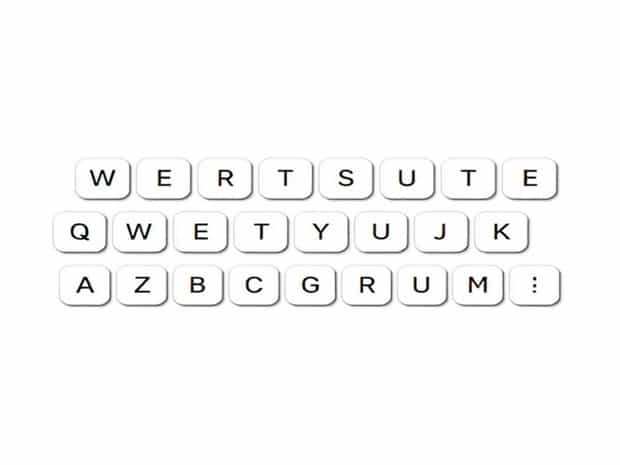
The QWERTY keyboard is the most widely used keyboard layout worldwide. It was originally designed in the 19th century for typewriters and later adapted for computers. The layout is named after the first six letters on the top row of alphabetic keys. Familiarity with this layout is the first step in learning to type effectively.
Key Sections of a QWERTY Keyboard
- Alphabet KeysThese keys are arranged in the standard QWERTY layout and form the core of typing letters.
- Number KeysLocated above the alphabet keys, these include numbers 0 through 9 along with special characters accessed with the shift key.
- Function KeysLabeled F1 through F12, these keys are often used for shortcuts and specific commands in software applications.
- Modifier KeysShift, Ctrl, Alt, and Windows/Command keys are used in combination with other keys for shortcuts and special functions.
- Navigation KeysArrow keys, Home, End, Page Up, and Page Down help move the cursor efficiently within documents or web pages.
- Spacebar, Enter, Backspace, and TabThese keys control spacing, line breaks, deleting text, and indentation while typing.
Understanding the layout and function of each section allows you to use the keyboard more efficiently and reduces the time spent searching for keys.
Proper Hand Positioning
Correct hand positioning is crucial for accurate and fast typing. Your hands should be relaxed, and fingers should rest on the home row, which serves as the reference point for all typing movements.
Home Row Keys
- For the left hand Place your fingers on A, S, D, and F.
- For the right hand Place your fingers on J, K, L, and ; (semicolon).
- Both thumbs rest lightly on the spacebar.
The home row allows each finger to reach surrounding keys with minimal movement, reducing strain and increasing speed. Correct hand positioning also minimizes mistakes, as each finger is responsible for specific keys in its region.
Finger Placement and Movement
Once your hands are on the home row, each finger is assigned to certain keys. Learning which fingers correspond to which keys improves typing efficiency and accuracy over time.
Left Hand Finger Assignment
- Pinky Q, A, Z, Shift (left)
- Ring Finger W, S, X
- Middle Finger E, D, C
- Index Finger R, T, F, G, V, B
Right Hand Finger Assignment
- Index Finger Y, U, H, J, N, M
- Middle Finger I, K, , (comma)
- Ring Finger O, L,. (period)
- Pinky P, ; (semicolon), / (forward slash), Shift (right)
Practicing these assignments ensures that each finger moves to the correct key without excessive effort, enhancing speed and reducing typing fatigue.
Typing Techniques
Beyond finger placement, mastering typing techniques is essential for proficiency. The following techniques are widely recommended for anyone learning to type on a QWERTY keyboard.
Touch Typing
Touch typing involves typing without looking at the keyboard. This method relies on muscle memory, allowing your fingers to find the correct keys automatically. Touch typing significantly increases speed and accuracy over time.
Proper Posture
- Sit upright with your back straight and feet flat on the floor.
- Keep your wrists slightly elevated and relaxed, avoiding resting them on the keyboard or desk.
- Position the keyboard at a comfortable height so your elbows form roughly a 90-degree angle.
Maintaining proper posture prevents strain, reduces the risk of repetitive stress injuries, and makes typing sessions more comfortable.
Typing Practice and Exercises
Consistent practice is essential to mastering typing skills. Start with basic exercises that focus on the home row keys, then gradually incorporate all rows and punctuation marks. Online typing tutorials and games can make practice enjoyable while improving speed and accuracy.
Common Typing Challenges
Beginners often face challenges when learning to type, including frequent mistakes, slow speed, and hand fatigue. Understanding these challenges can help you develop strategies to overcome them.
Speed and Accuracy
Typing too quickly without proper finger placement often leads to errors. Focus on accuracy first, and gradually increase your speed as your muscle memory develops. Use typing tests and software to track your progress and adjust your practice routines.
Fatigue and Strain
Typing for extended periods can cause fatigue in your hands, wrists, and shoulders. Taking regular breaks, stretching your fingers, and practicing good posture can alleviate strain and prevent injuries like carpal tunnel syndrome.
Using Keyboard Shortcuts
Keyboard shortcuts can greatly enhance your efficiency while typing on a QWERTY keyboard. Common shortcuts include
- Ctrl + CCopy selected text.
- Ctrl + VPaste copied text.
- Ctrl + XCut selected text.
- Ctrl + ZUndo the last action.
- Ctrl + SSave the current document.
- Alt + TabSwitch between open applications.
Using shortcuts reduces reliance on the mouse and allows for faster workflow, especially in professional or academic settings.
Advanced Tips for Efficient Typing
Once you are comfortable with basic typing, advanced strategies can further improve your speed and efficiency.
Practice with Real Content
Typing real content such as emails, reports, or topics helps simulate everyday typing scenarios. This practice reinforces proper finger movements and improves familiarity with commonly used words and phrases.
Set Goals and Track Progress
- Set specific speed and accuracy goals, such as typing 40 words per minute with 95% accuracy.
- Track your progress using typing software or online platforms to measure improvement over time.
- Celebrate milestones to stay motivated and maintain a consistent practice routine.
Typing efficiently on a QWERTY keyboard requires a combination of proper hand positioning, finger placement, touch typing skills, and consistent practice. By understanding the keyboard layout, practicing regularly, and maintaining good posture, anyone can improve both speed and accuracy. Using keyboard shortcuts and setting measurable goals can further enhance your typing abilities. Whether you are a student, professional, or casual computer user, mastering QWERTY typing is a valuable skill that increases productivity and opens up new opportunities in the digital world.