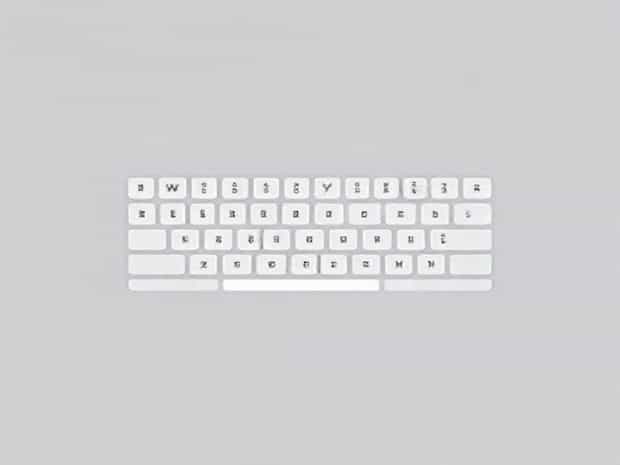
How To Change Keyboard To Qwerty
Changing your keyboard layout to QWERTY is a simple but essential task for anyone who wants to standardize typing across devices or prefers the most widely used keyboard configuration. Whether you are using a Windows PC, Mac, Android device, or iPhone, switching to QWERTY can enhance typing efficiency, reduce errors, and make it easier to follow tutorials or instructions that assume a QWERTY layout. Many people unintentionally use alternative keyboard layouts like AZERTY or DVORAK, which can lead to confusion when typing online or using software shortcuts. Understanding how to change your keyboard to QWERTY ensures consistency and a smoother typing experience.
What is a QWERTY Keyboard?
The QWERTY keyboard is named after the first six letters on the top row of the keyboard. It is the standard keyboard layout used in most English-speaking countries and is recognized globally. Designed in the 19th century for typewriters, it was intended to prevent mechanical jams by spacing out commonly used letters. Today, it remains the default for most computers, smartphones, and tablets, making it easier for users to type, learn, and troubleshoot typing issues across different devices.
Benefits of Using QWERTY
- Universal compatibility with software and hardware.
- Ease of learning for beginners and consistent typing experience.
- Supports standard keyboard shortcuts for productivity.
- Reduces confusion when using shared devices or public computers.
Changing Keyboard to QWERTY on Windows
On a Windows computer, switching to a QWERTY layout is straightforward and can be done through system settings.
Step-by-Step Guide
- Click on theStartmenu and selectSettings.
- Navigate toTime & Languageand thenLanguage & Region.
- Select your preferred language (usually English) and click onOptions.
- UnderKeyboards, ensure thatUS QWERTYor the desired QWERTY layout is added.
- Remove any other layouts, such as AZERTY or DVORAK, to avoid accidental switches.
- Restart your computer or log out and back in to ensure the layout is applied system-wide.
Changing Keyboard to QWERTY on Mac
Mac users can also easily switch to a QWERTY layout using the system preferences.
Step-by-Step Guide
- Click theApplemenu and chooseSystem Preferences.
- SelectKeyboardand then click onInput Sources.
- Click the+button to add a new input source and selectEnglish – U.S.
- Ensure the layout is set to QWERTY and remove other input sources if needed.
- Enable the input menu in the menu bar to switch quickly between layouts if multiple keyboards are needed.
Changing Keyboard to QWERTY on Android Devices
On Android smartphones or tablets, the keyboard layout is managed through the virtual keyboard app, often Gboard or Samsung Keyboard.
Step-by-Step Guide
- OpenSettingson your device.
- Navigate toSystemorGeneral Management, then selectLanguages & Input.
- Choose your keyboard app (e.g., Gboard, Samsung Keyboard).
- TapLanguagesand select the language you want.
- Ensure the layout is set toQWERTY. Remove alternative layouts like AZERTY if present.
- Open any app with a text field to test the keyboard and confirm that it uses the QWERTY layout.
Changing Keyboard to QWERTY on iPhone and iPad
Apple devices allow users to configure their keyboard layout directly in the device settings.
Step-by-Step Guide
- OpenSettingsand selectGeneral.
- TapKeyboardand thenKeyboards.
- Select the keyboard you are using, such asEnglish (US).
- Ensure the layout is set toQWERTY. If other layouts are present, remove or disable them.
- Open any text input app to confirm the QWERTY layout is active.
Troubleshooting Keyboard Layout Issues
Sometimes, the keyboard may still type incorrectly even after changing the layout. Common issues include accidental layout switching, software glitches, or device-specific settings.
Common Solutions
- Check for multiple keyboard layouts and remove unused ones to prevent accidental switches.
- Restart your device to apply new settings fully.
- Update keyboard apps and operating systems to the latest versions.
- Use keyboard shortcuts to switch layouts (e.g.,Alt + Shifton Windows) if multiple layouts are needed temporarily.
- Reinstall the keyboard app if virtual keyboards are not responding properly.
Tips for Efficient Typing on QWERTY
After switching to QWERTY, you can enhance your typing speed and accuracy through practice and customization.
Keyboard Shortcuts
- Learn basic shortcuts likeCtrl + Cfor copy andCtrl + Vfor paste on Windows.
- UseCommand + C/Von Mac for similar functionality.
- Familiarize yourself with layout-specific shortcuts in productivity apps.
Practice Tools
Online typing tutors and software can help reinforce the QWERTY layout, improve typing speed, and reduce errors. Regular practice ensures smooth transition from other layouts to QWERTY.
Changing your keyboard to QWERTY is a simple process that can significantly improve typing efficiency, reduce errors, and provide consistency across devices. Whether you are using Windows, Mac, Android, or iOS, following the proper steps ensures your keyboard is set correctly and ready for everyday use. Removing alternative layouts and practicing typing habits helps maintain accuracy and speed. By understanding the advantages of the QWERTY layout and applying these steps, you can create a seamless typing experience that enhances productivity and convenience across all digital platforms.