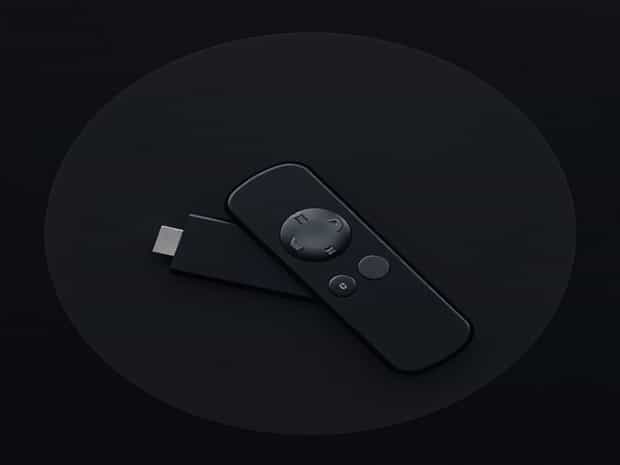
Firestick Remote Stopped Working
Streaming devices have become an integral part of home entertainment, and Amazon Firestick is one of the most popular choices for accessing movies, TV shows, and apps. However, users occasionally encounter issues with their Firestick remote, such as it stopping working unexpectedly. This can disrupt the viewing experience and make it difficult to navigate the interface. Understanding the common causes, troubleshooting methods, and preventive measures can help restore functionality and ensure that the Firestick remote works reliably over time.
Common Causes of Firestick Remote Issues
Several factors can cause a Firestick remote to stop working. Identifying the root cause is crucial for effective troubleshooting. Common reasons include
- Dead or Weak BatteriesLow battery power is one of the most frequent reasons for a non-responsive remote.
- Bluetooth Connectivity ProblemsFirestick remotes rely on Bluetooth, and pairing issues or interference can prevent proper communication.
- ObstructionsPhysical obstacles between the remote and the Firestick device can interfere with the signal.
- Software GlitchesOccasionally, the Firestick’s software or firmware may cause the remote to stop responding.
- Hardware MalfunctionPhysical damage or internal defects in the remote can also lead to failures.
Basic Troubleshooting Steps
Before attempting more advanced fixes, it is recommended to go through basic troubleshooting steps to resolve common issues.
Check and Replace Batteries
One of the first steps is to inspect the remote’s batteries. Remove the back cover, take out the batteries, and check for corrosion or leakage. Replace them with fresh, high-quality batteries to ensure proper power supply. Sometimes, simply changing batteries can restore full functionality.
Restart the Firestick Device
Restarting the Firestick can resolve minor software glitches that may prevent the remote from working. To restart, unplug the Firestick from the power source, wait for about 30 seconds, and plug it back in. Once the device powers up, try using the remote again.
Check for Obstructions
Ensure there are no physical objects blocking the path between the remote and the Firestick device. Remove any items that may interfere with the Bluetooth signal. Ideally, the remote should be used within a clear line of sight to the device for optimal performance.
Re-Pairing the Remote
Sometimes the remote may lose its Bluetooth connection with the Firestick. Re-pairing the remote can often fix this issue.
Steps to Re-Pair the Firestick Remote
- Unplug the Firestick from power and wait for about 10 seconds, then plug it back in.
- Press and hold the Home button on the remote for approximately 10 to 20 seconds.
- Wait for a confirmation message or for the remote to start responding to inputs.
- If necessary, navigate to Settings > Controllers & Bluetooth Devices > Amazon Fire TV Remotes > Add New Remote to complete the pairing process.
Software Updates and Firmware Checks
Outdated software or firmware can cause the Firestick remote to stop functioning correctly. Checking for updates and installing them can resolve compatibility issues and bugs.
Updating Firestick Software
- Navigate to Settings > My Fire TV > About > Check for Updates.
- Install any available updates and allow the device to restart automatically.
- Test the remote after the update to see if the issue is resolved.
Alternative Solutions
If the remote continues to malfunction, there are alternative methods to control the Firestick temporarily or permanently.
Using the Fire TV App
Amazon provides a Fire TV app for smartphones that replicates the functionality of the physical remote. The app allows users to navigate menus, launch apps, and input text using their phone. This can serve as a temporary solution while troubleshooting the physical remote.
Using HDMI-CEC Enabled TV Remote
Many modern TVs support HDMI-CEC, which allows the TV remote to control connected devices, including Firestick. Enabling HDMI-CEC in the TV settings can allow basic control of the Firestick without the dedicated remote.
Preventive Measures
To reduce the likelihood of future remote issues, users can follow certain preventive practices
- Regularly check and replace batteries before they fully discharge.
- Keep the Firestick and remote firmware updated to the latest version.
- Maintain a clear line of sight between the remote and the device.
- Handle the remote carefully to avoid drops or physical damage.
- Use the Fire TV app as a backup control option in case of emergencies.
When to Replace the Remote
If all troubleshooting steps fail, it may indicate that the remote has a hardware issue that cannot be resolved through software fixes. In such cases, purchasing a replacement remote is the most practical solution. Amazon and third-party vendors offer compatible Firestick remotes that can be paired easily with existing devices.
Signs That Replacement is Necessary
- Remote fails to respond even after battery replacement and re-pairing.
- Buttons are physically damaged or stuck.
- Frequent disconnects that cannot be resolved with updates or pairing.
A Firestick remote stopping working can be frustrating, but most issues can be resolved through basic troubleshooting, re-pairing, software updates, or alternative control methods. Checking batteries, ensuring a clear line of sight, and using the Fire TV app are practical first steps. If these steps fail, replacing the remote may be necessary. By understanding the common causes and applying preventive measures, users can maintain consistent Firestick functionality, ensuring an uninterrupted streaming experience and efficient control over their home entertainment setup.