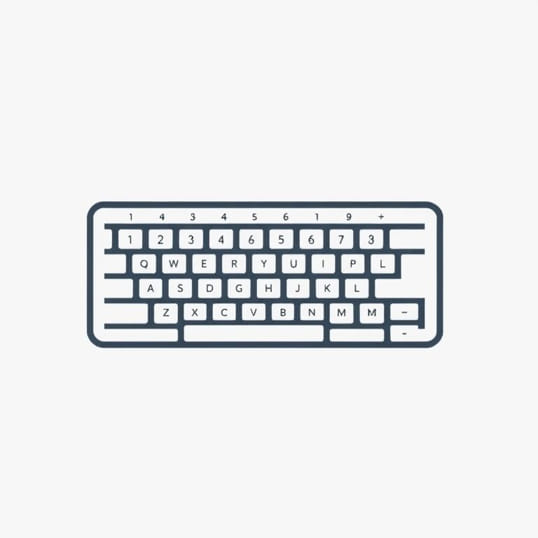
Comment Faire Sur Clavier Qwerty
Many people who are used to typing on an AZERTY keyboard often ask how to do certain characters on a QWERTY keyboard, or in French, comment faire sur clavier QWERTY. The QWERTY layout is the most widely used keyboard system in the world, especially in English-speaking countries. However, it can feel confusing for users who need to type accents, special characters, or punctuation marks that are arranged differently compared to AZERTY or other layouts. Learning how to adapt to QWERTY not only improves speed but also helps when working on international devices or software that defaults to this format.
Understanding the QWERTY Keyboard
The QWERTY keyboard layout was originally designed for typewriters to prevent keys from jamming. Over time, it became the standard in many countries, especially in the United States and Canada. Unlike AZERTY or QWERTZ keyboards, QWERTY places certain letters and symbols in different positions. For example, typing accents or French characters can be more challenging without knowing shortcuts.
Main Differences with AZERTY
- Letters A and Q are swapped compared to AZERTY.
- The letter M is placed differently.
- Numbers on QWERTY are accessible without the Shift key.
- Accents like é, à , or ç are not directly available and require combinations.
Typing Accents on a QWERTY Keyboard
One of the biggest challenges when using QWERTY is writing in French or other languages that require accented characters. Fortunately, there are several ways to do this depending on your operating system.
Using Alt Codes on Windows
On Windows computers, you can hold theAltkey and type numeric codes on the number pad to create accented characters. Here are some common examples
- é = Alt + 0233
- è = Alt + 0232
- Ã = Alt + 0224
- ç = Alt + 0231
- ô = Alt + 0244
This method is useful but requires memorization of the codes, which may feel slow at first.
Keyboard Shortcuts on Mac
Mac users can press and hold a letter key to see available accent options. For example, holding the e key shows é, è, ê, and ë. You can then press the number corresponding to the accent you need. This makes typing accented characters much easier than using Alt codes.
Using International Keyboard Layouts
Another option is to enable an International QWERTY layout in your system settings. This allows you to type accents by combining characters. For example
- Press ` (grave accent) then e â è
- Press ‘ (apostrophe) then e â é
- Press ^ (caret) then o â ô
- Press (quotation) then u â ü
This layout is especially helpful for bilingual users who type frequently in multiple languages.
Special Characters on QWERTY
When people search comment faire sur clavier QWERTY, they often want to know how to type characters such as @, #, or currency symbols. These keys are placed differently depending on the region.
Common Characters
- @ symbol Shift + 2 (on US QWERTY)
- # symbol Shift + 3
- $ symbol Shift + 4
- & symbol Shift + 7
If you are coming from AZERTY, these positions may feel unusual at first, but with practice, they become natural.
Currency Symbols
The QWERTY keyboard also allows you to type international currency signs. For example
- £ = Alt + 0163
- ⬠= Alt + 0128 (or Alt + 5 on some layouts)
- ¥ = Alt + 0165
Mac users can access these with Option key combinations, such as Option + Shift + 2 for ⬠on some versions.
Switching Between Layouts
Many computers let you switch between AZERTY and QWERTY layouts with a simple shortcut. This is useful for people who work with multiple languages or who share their computer with others.
Windows Shortcut
PressAlt + ShiftorWindows Key + Spacebarto toggle between keyboard layouts. You can configure which layouts are active in language settings.
Mac Shortcut
On a Mac, you can switch layouts by pressingCommand + Spacebaror setting a custom shortcut in keyboard preferences. The active layout is usually displayed on the menu bar.
Tips for Learning QWERTY Faster
Adapting to a new keyboard layout takes time, but with practice, it becomes natural. Here are some tips for making the transition smoother
- Practice touch typing to build muscle memory.
- Use online typing trainers set to QWERTY layout.
- Stick with QWERTY consistently instead of switching too often.
- Print or use a digital reference chart for accented characters until you memorize them.
Benefits of Using QWERTY
Although it may feel difficult at first, using a QWERTY keyboard has advantages. It is the most common layout worldwide, meaning you will find it on most public and international devices. It also integrates better with many software programs and shortcuts designed for English users.
Practical Advantages
- Easier compatibility with global apps and websites.
- Consistent placement of keys across different devices.
- Faster adaptation when traveling or working abroad.
For anyone asking comment faire sur clavier QWERTY, the key is learning shortcuts, codes, and layout differences compared to AZERTY or other systems. While typing French accents and special characters may require extra steps, solutions like Alt codes, international layouts, or Mac shortcuts make it manageable. Over time, the QWERTY system becomes natural, especially with regular practice. By mastering these techniques, users can type efficiently on any device, regardless of the language or region.