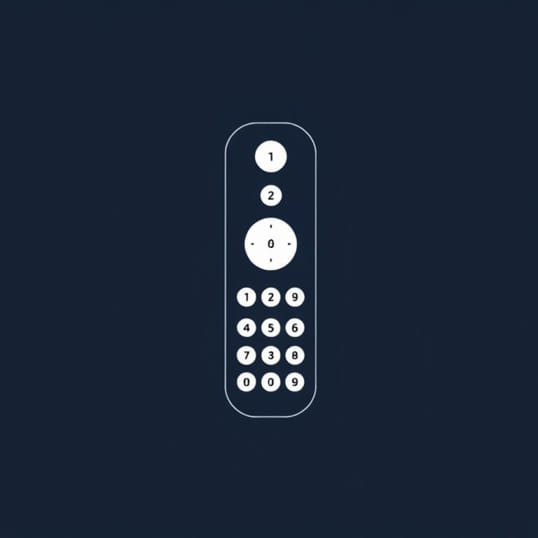
Codes For Philips Universal Remote
Programming a Philips universal remote can save you from juggling multiple remotes for your television, DVD player, streaming device, and audio system. Instead of using a different controller for each piece of equipment, you can rely on one universal remote that communicates with all your devices. To make this possible, Philips provides a set of codes that allow the universal remote to recognize and control your specific brand and model of electronics. Understanding these codes, how to enter them, and what to do if a code does not work is essential for anyone using a Philips universal remote in their home entertainment setup.
What Are Philips Universal Remote Codes?
Philips universal remote codes are numerical sequences used to connect the remote with a particular brand of device. Each manufacturer uses unique infrared signals, and these codes act as translators, telling the Philips remote how to send the correct commands. Without these codes, the universal remote cannot recognize your TV, Blu-ray player, or other equipment. Fortunately, Philips provides lists of codes for thousands of devices, covering most major electronics brands.
Common Categories of Devices Supported
The beauty of a Philips universal remote is that it can work with more than just televisions. The available codes cover a wide range of devices, making it highly versatile. Common categories include
- Televisions from popular brands like Samsung, LG, Sony, and Philips itself
- DVD and Blu-ray players
- Streaming devices such as Roku or Apple TV
- Audio systems, including soundbars and home theater receivers
- VCRs and older playback equipment
By entering the correct code, you can switch between controlling these devices without changing remotes.
How to Program Philips Universal Remote Using Codes
The programming process is straightforward if you already have the correct code. Follow these steps
- Turn on the device you want to program.
- Press and hold the Setup button on the remote until the red indicator light stays on.
- Press the device button (such as TV, DVD, or AUX).
- Enter the four-digit or five-digit code for your device using the number buttons.
- Release the setup button and test the remote by pressing power or volume.
If the device responds, you have successfully paired the Philips universal remote. If not, repeat the process with a different code from the list.
Philips Universal Remote Codes for Popular TV Brands
Televisions are the most commonly programmed devices, and Philips universal remotes support nearly every major brand. Here are examples of codes frequently used for TVs
- Samsung 0812, 0060, 0702, 0178
- Sony 0002, 0071, 0380, 0810
- LG 0606, 0502, 0227, 0324
- Philips 0008, 0502, 0605
- Panasonic 0051, 0109, 0226, 0070
These codes may vary depending on the model of the remote and the device, so always try multiple codes if the first one fails.
Codes for DVD and Blu-ray Players
Philips universal remotes also work with media players, allowing you to play, pause, and navigate menus. Examples include
- Philips DVD 0388, 0456, 0667
- Sony DVD 0533, 0864, 0380
- LG DVD 0741, 0606, 0502
- Toshiba DVD 0503, 0677, 0720
- Panasonic DVD 0490, 0632, 0716
These codes allow seamless control of media playback without needing the original remote.
Audio Systems and Soundbars
Modern home theaters often include soundbars and receivers. Philips universal remote codes can cover these devices as well. Examples include
- Bose 0672, 1229, 1960
- Yamaha 0176, 1176, 1276
- Onkyo 0815, 1903, 1923
- Philips Audio 0402, 0720, 0802
Programming your audio equipment ensures that you can adjust volume and inputs using one universal controller.
What If a Code Does Not Work?
Sometimes the code you enter may not function properly. This could happen for several reasons, such as having an older or newer model not listed in the standard code set. If that happens, Philips universal remotes often provide an auto-search feature. This function scans through available codes until it finds one that works with your device. To use auto-search
- Turn on the device you want to control.
- Hold the Setup button until the light stays on.
- Press the device button and then slowly press the power button repeatedly.
- When the device turns off, press Enter to save the code.
This method can take a little longer but is useful when codes are not readily available.
Tips for Using Philips Universal Remote Codes
To get the best experience, follow these tips when programming and using your remote
- Always write down the code once it works so you can reprogram quickly if needed.
- Ensure the remote has fresh batteries before programming.
- Test multiple functions, such as power, volume, and menu navigation, to confirm the code is correct.
- Keep your code list handy in case you add or replace devices later.
- Use auto-search as a backup if manual codes fail.
Advantages of Using a Philips Universal Remote
Beyond just entering codes, Philips universal remotes bring convenience to everyday use. Benefits include
- Reducing clutter by eliminating the need for multiple remotes
- Supporting both modern and older electronics
- Easy setup process with widely available code lists
- Compatibility with different entertainment systems
- Ability to control TVs, players, and sound systems in one unit
For households with multiple devices, this solution greatly simplifies operation.
Philips universal remote codes are the key to unlocking a single, streamlined way of controlling all your entertainment devices. Whether you are programming a television, DVD player, sound system, or streaming box, these codes ensure that your universal remote works effectively. By understanding how to enter codes, troubleshoot issues, and use auto-search, you can make your home entertainment setup more organized and user-friendly. With a Philips universal remote, managing your electronics becomes easier, more efficient, and far less frustrating.