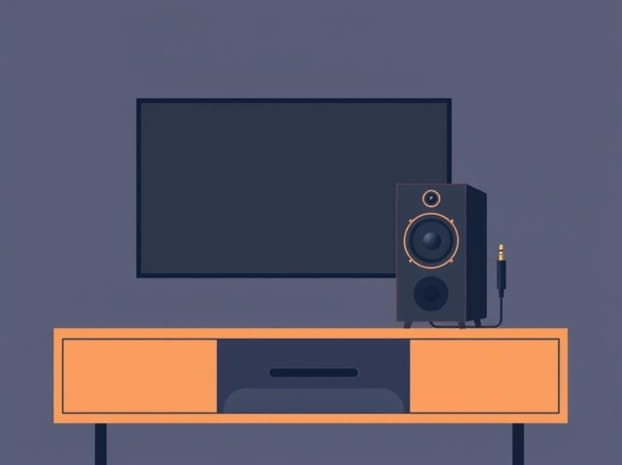
How To Connect Speaker To Tv With Aux
Connecting a speaker to a TV using an auxiliary (AUX) cable is a simple yet effective way to enhance your audio experience without investing in complicated setups. Many TVs come with built-in speakers, but they often lack the depth and clarity that external speakers provide. Using an AUX connection allows you to transmit audio directly from your TV to your speaker, resulting in improved sound quality for movies, shows, gaming, and music. This method is widely compatible and works with most modern and older TVs and speakers, making it a convenient solution for anyone seeking better audio performance.
Understanding AUX Connections
An AUX connection uses a 3.5mm audio jack to transmit analog audio signals from one device to another. Unlike HDMI or optical connections, AUX cables are straightforward and do not require complex configuration. Most portable speakers, soundbars, and home audio systems feature an AUX input, and many TVs include a headphone jack or dedicated audio output that supports AUX connections.
Types of AUX Cables
- 3.5mm to 3.5mm CableStandard AUX cable used for most TVs and portable speakers.
- 3.5mm to RCA CableConverts AUX output to RCA connectors for speakers with red and white ports.
- AdaptersSometimes necessary for TVs with headphone jacks or when connecting to speakers with different input types.
Steps to Connect a Speaker to a TV Using AUX
Connecting your speaker to a TV with an AUX cable involves a few simple steps. By following these steps carefully, you can achieve clear and powerful sound without any technical difficulties.
1. Check TV and Speaker Ports
First, locate the audio output port on your TV. This could be a headphone jack labeled Audio Out or Headphones, or in some cases, a dedicated AUX output. Next, identify the AUX input on your speaker. It is usually labeled AUX In or simply Line In. Ensure that both devices have compatible ports to use a 3.5mm cable or the appropriate adapter.
2. Get the Right AUX Cable
Select an AUX cable that matches the input and output ports of your TV and speaker. A standard 3.5mm male-to-male cable works for most setups. If your speaker only has RCA inputs, you may need a 3.5mm to RCA cable. High-quality cables can reduce interference and provide better audio fidelity.
3. Power Off the Devices
Before connecting the cable, it’s a good practice to power off both the TV and the speaker. This prevents any sudden electrical surges and ensures a safe connection. Once the cable is securely connected, you can power on the devices.
4. Connect the Cable
Insert one end of the AUX cable into the TV’s audio output or headphone jack. Insert the other end into the speaker’s AUX input. Make sure the connections are snug and fully inserted to prevent loose contact, which can cause static or low-quality audio.
5. Adjust TV Audio Settings
Many TVs require you to select the audio output manually. Navigate to the TV’s audio settings menu and select External Speaker, Audio Out, or Headphones, depending on your model. Some TVs automatically detect when an AUX cable is connected, while others may continue using built-in speakers until you adjust the settings.
6. Adjust Speaker Volume
Set the speaker volume to a moderate level before testing. Start with the TV volume at a low to moderate level, then increase both the TV and speaker volume to achieve the desired sound level. Avoid setting the volume too high initially, as this may cause distortion or damage the speaker.
Troubleshooting Common Issues
Even though AUX connections are simple, you might encounter some issues. Here are common problems and solutions
No Sound
Check that the AUX cable is fully inserted into both devices. Verify that the TV is set to output audio through the external speaker or headphone jack. Make sure the speaker is powered on and the volume is turned up.
Static or Poor Audio Quality
Static or poor sound can occur if the cable is of low quality, damaged, or loosely connected. Try using a different cable, ensure a snug fit, and keep the cable away from power sources that may cause interference.
Volume Too Low
Some TVs reduce the volume when using headphone or AUX output. Check your TV audio settings for a volume boost or audio normalization option. Increasing the speaker volume can also compensate for low output levels.
Advantages of Using AUX for TV Audio
Using an AUX connection has several advantages for enhancing your TV audio experience
- CompatibilityWorks with most TVs and speakers, including older models.
- SimplicityEasy to connect without technical knowledge.
- Cost-EffectiveAUX cables are inexpensive and widely available.
- Portable OptionsAllows connection to portable speakers for flexible placement.
Tips for Optimal Audio Performance
To get the best sound quality when connecting a speaker to your TV with AUX, consider these tips
- Use high-quality, shielded AUX cables to minimize interference.
- Keep cable runs short to reduce signal loss and maintain audio clarity.
- Regularly check cable connections to ensure they remain secure.
- Position speakers properly to optimize sound distribution in the room.
Connecting a speaker to a TV with an AUX cable is a straightforward and effective way to enhance your home entertainment experience. By understanding the types of AUX connections, selecting the right cable, properly connecting devices, and adjusting settings, you can enjoy clear, powerful audio for movies, music, and gaming. Troubleshooting common issues and following best practices ensures consistent performance and prevents frustration. With this simple setup, even a basic speaker can dramatically improve your TV’s sound quality, making it a cost-effective solution for a more immersive viewing experience.